
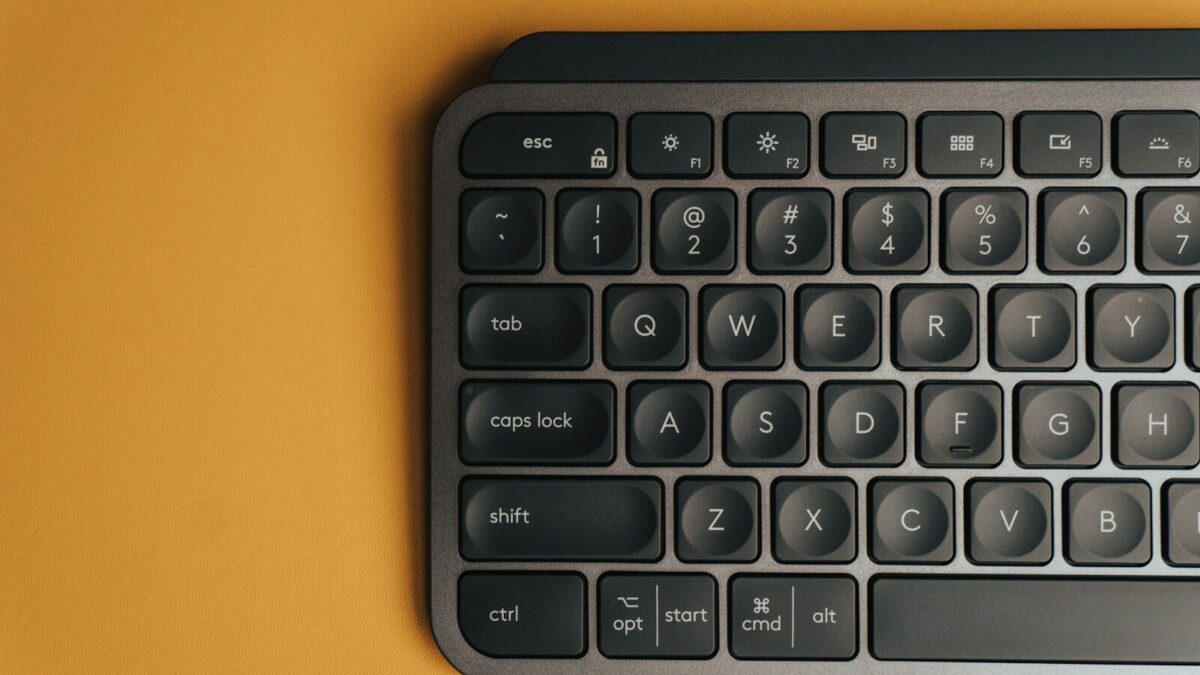
You can use Linux perfectly fine with a mouse. But once you start learning keyboard shortcuts, you’ll never go back. The right shortcut at the right moment turns a 5-second task into a half-second reflex — and when you’re doing it a hundred times a day, that adds up fast.
This is your complete reference guide to Linux keyboard shortcuts. We’ve organized them by category so you can bookmark this page and come back whenever you need a quick reminder. These shortcuts work across all major distros — Ubuntu, Fedora, Arch, Mint, Pop!_OS — whether you’re running GNOME, KDE, or XFCE.
Tip: A good keyboard makes shortcuts feel effortless. If you’re still on a mushy membrane board, check out our guide to the best Linux keyboards in 2026 to find an upgrade worth making.
Desktop & Window Management Shortcuts
These are the shortcuts you’ll use every single day. Learn these first.

| Shortcut | Action |
|---|---|
Super | Open Activities / App launcher |
Super + D | Show desktop |
Super + L | Lock screen |
Super + A | Open application grid |
Alt + F4 | Close active window |
Alt + F2 | Run command prompt |
Super + ↑ | Maximize window |
Super + ↓ | Restore / minimize window |
Super + ← | Snap window to left half |
Super + → | Snap window to right half |
Alt + Tab | Switch between open windows |
Alt + Shift + Tab | Switch windows in reverse |
Super + Tab | Switch between apps (GNOME) |
Super + Page Up/Down | Switch workspaces |
Super + Shift + ↑/↓ | Move window to another workspace |
Print Screen | Take a screenshot |
Alt + Print Screen | Screenshot of active window |
Shift + Print Screen | Screenshot of selected area |
Terminal Keyboard Shortcuts
If there’s one category to memorize completely, it’s this one. Terminal shortcuts will save you hours every week.
Navigation
| Shortcut | Action |
|---|---|
Ctrl + A | Move cursor to beginning of line |
Ctrl + E | Move cursor to end of line |
Alt + F | Move cursor forward one word |
Alt + B | Move cursor backward one word |
Ctrl + XX | Toggle between current and start of line |
Editing
| Shortcut | Action |
|---|---|
Ctrl + U | Cut from cursor to beginning of line |
Ctrl + K | Cut from cursor to end of line |
Ctrl + W | Cut the word before the cursor |
Alt + D | Cut the word after the cursor |
Ctrl + Y | Paste (yank) last cut text |
Ctrl + T | Swap last two characters |
Alt + T | Swap last two words |
Ctrl + _ | Undo last edit |
History & Control
| Shortcut | Action |
|---|---|
Ctrl + C | Kill current process |
Ctrl + D | Exit terminal / end of input |
Ctrl + Z | Suspend current process (send to background) |
Ctrl + L | Clear terminal screen |
Ctrl + R | Reverse search through command history |
Ctrl + G | Escape from history search |
↑ / ↓ | Browse command history |
!! | Repeat last command |
!$ | Reuse last argument of previous command |
Terminal Emulator (Tabs & Windows)
| Shortcut | Action |
|---|---|
Ctrl + Shift + T | Open new tab |
Ctrl + Shift + W | Close current tab |
Ctrl + Shift + N | Open new terminal window |
Alt + [number] | Switch to tab by number |
Ctrl + Page Up/Down | Switch between tabs |
Ctrl + Shift + C | Copy selected text |
Ctrl + Shift + V | Paste text |
Note:
Ctrl + CandCtrl + Vdon’t work for copy/paste in most terminals — you need theShiftmodifier. This trips up a lot of Windows switchers.
File Manager Shortcuts
Whether you’re using Nautilus (GNOME), Dolphin (KDE), or Thunar (XFCE), most of these shortcuts are universal.
| Shortcut | Action |
|---|---|
Ctrl + N | Open new window |
Ctrl + T | Open new tab |
Ctrl + W | Close tab |
Ctrl + H | Show/hide hidden files (dotfiles) |
Ctrl + L | Focus address bar |
Alt + ← | Go back |
Alt + → | Go forward |
Alt + ↑ | Go to parent folder |
F2 | Rename selected file |
Delete | Move to trash |
Shift + Delete | Permanently delete (skip trash) |
Ctrl + A | Select all files |
Ctrl + C | Copy |
Ctrl + X | Cut |
Ctrl + V | Paste |
Ctrl + Z | Undo last file operation |
Ctrl + F | Search |
Browser Shortcuts (Firefox / Chromium)
Most Linux users spend a big chunk of their day in a browser. These work on both Firefox and Chromium-based browsers.
| Shortcut | Action |
|---|---|
Ctrl + T | New tab |
Ctrl + W | Close tab |
Ctrl + Shift + T | Reopen closed tab |
Ctrl + Tab | Switch to next tab |
Ctrl + Shift + Tab | Switch to previous tab |
Ctrl + L | Focus address bar |
Ctrl + R | Reload page |
Ctrl + Shift + R | Hard reload (bypass cache) |
Ctrl + F | Find on page |
Ctrl + D | Bookmark current page |
Ctrl + H | Open browsing history |
Ctrl + J | Open downloads |
Ctrl + Shift + I | Open developer tools |
F11 | Toggle fullscreen |
Ctrl + + | Zoom in |
Ctrl + - | Zoom out |
Ctrl + 0 | Reset zoom |
Space | Scroll down one page |
Shift + Space | Scroll up one page |
Text Editor Shortcuts
These apply to most Linux text editors including Gedit, Kate, and similar GUI editors. Vim and Emacs have their own worlds — that’s a separate guide entirely.
| Shortcut | Action |
|---|---|
Ctrl + S | Save |
Ctrl + Shift + S | Save as |
Ctrl + Z | Undo |
Ctrl + Y | Redo |
Ctrl + F | Find |
Ctrl + H | Find and replace |
Ctrl + G | Go to line number |
Ctrl + A | Select all |
Ctrl + C | Copy |
Ctrl + X | Cut |
Ctrl + V | Paste |
Ctrl + D | Delete current line |
Home | Go to beginning of line |
End | Go to end of line |
Ctrl + Home | Go to beginning of file |
Ctrl + End | Go to end of file |
System & Power Shortcuts
| Shortcut | Action |
|---|---|
Ctrl + Alt + T | Open terminal (most distros) |
Ctrl + Alt + F2–F6 | Switch to virtual console (TTY) |
Ctrl + Alt + F1 / F7 | Return to graphical session |
Ctrl + Alt + Del | Open power/logout menu (GNOME) |
Ctrl + Alt + Backspace | Force restart display server (if enabled) |
Super + M | Open notification tray (GNOME) |
Super + N | Focus notification (GNOME 40+) |
Accessibility Shortcuts
| Shortcut | Action |
|---|---|
Alt + Super + S | Toggle screen reader |
Alt + Super + 8 | Toggle magnifier |
Alt + Super + + / - | Zoom in/out with magnifier |
Super + Alt + N | High contrast mode toggle |
Customizing Your Own Shortcuts
One of Linux’s biggest advantages over Windows is how easy it is to create or change keyboard shortcuts system-wide.
On GNOME: Go to Settings → Keyboard → View and Customize Shortcuts. You can modify any existing shortcut or scroll to the bottom to add a custom one.
On KDE Plasma: Go to System Settings → Shortcuts. KDE’s shortcut system is the most powerful of any desktop — you can assign shortcuts to scripts, apps, and even individual window actions.
On the command line: Tools like keyd, xbindkeys, and xmodmap give you fine-grained control that goes beyond what any GUI settings panel offers. keyd in particular is excellent for remapping keys globally — including turning Caps Lock into Escape or a second modifier key.
Linux Keyboard Shortcut Cheat Sheet — Quick Reference
Can’t remember where a shortcut is? Here’s the condensed version of everything above:
| Category | Key Shortcuts to Remember |
|---|---|
| Desktop | Super, Alt+Tab, Super+←/→, Super+L |
| Terminal | Ctrl+C, Ctrl+R, Ctrl+U/K, Ctrl+L |
| Files | Ctrl+H, F2, Alt+↑ |
| Browser | Ctrl+T/W, Ctrl+Shift+T, Ctrl+L |
| System | Ctrl+Alt+T, Ctrl+Alt+F2 |
Final Thoughts
Learning Linux keyboard shortcuts is one of those things that feels slow at first and then suddenly clicks. Start with the terminal shortcuts and the window management ones — those alone will transform how fast you move around your system.
And if you find yourself flying through shortcuts and realizing your keyboard is the bottleneck, it might be time for an upgrade. We’ve put together a guide to the best Linux keyboards in 2026 — fully compatible, no Windows drivers needed.
Which shortcut do you use most? Let us know in the comments!