
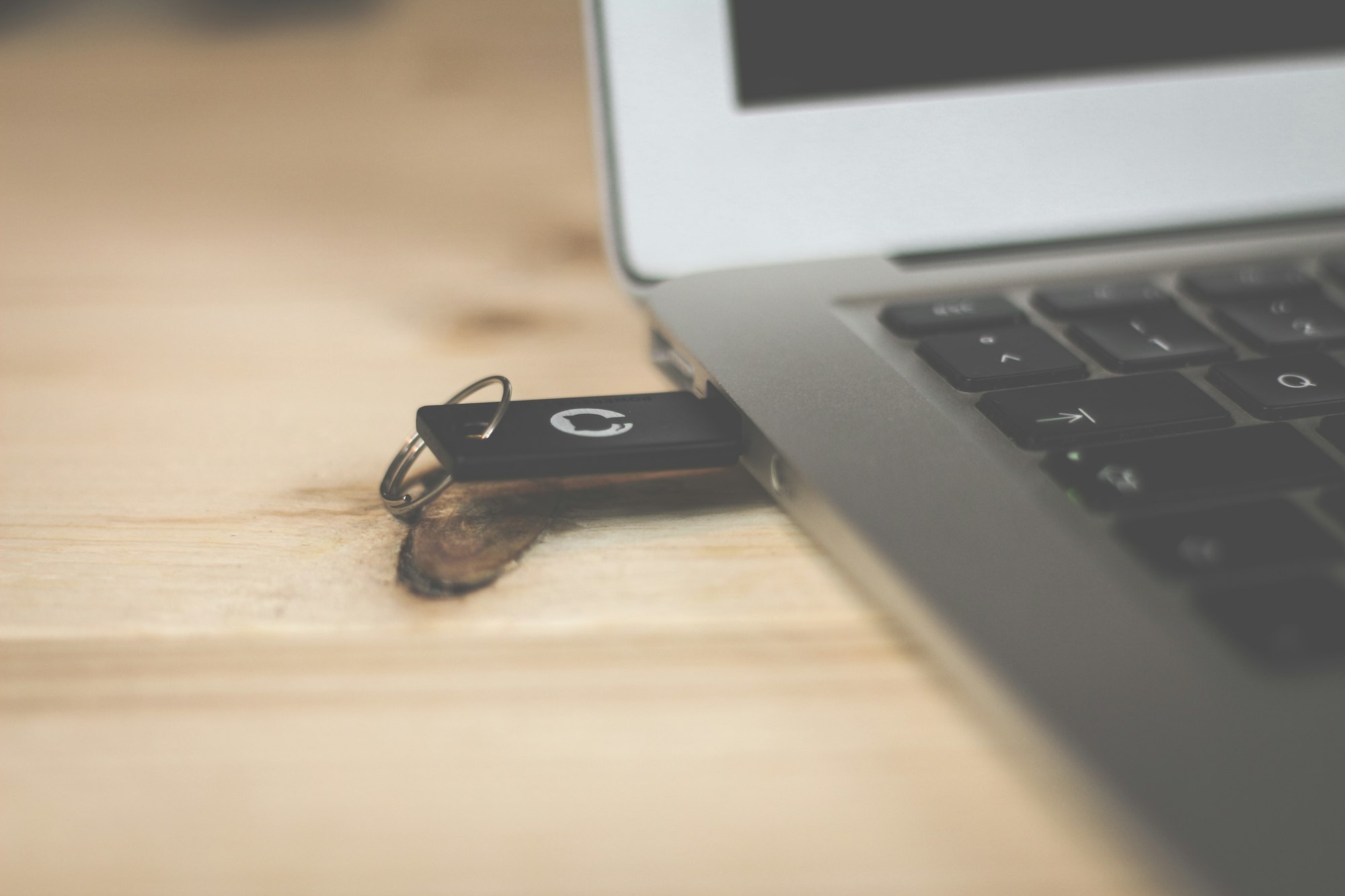
Lost your USB drive? Broke the only one you own? Whatever the reason, installing Linux without a USB is more doable than most people think. In this guide, we’ll walk through four methods — from the easiest (VirtualBox) to the most powerful (GRUB loopback boot and PXE network install) — so you can pick the one that fits your setup.
Method 1: GRUB Loopback Boot (Install Directly from ISO on Disk)
This is the most underrated method — and often the most practical. If you’re already running Linux or Windows and have space on your hard drive, you can place the ISO file on a partition and boot directly into it using GRUB.
Requirements: A working Linux system with GRUB installed, and a downloaded ISO file.
Steps:
- Download your chosen Linux distribution ISO (e.g., Ubuntu, Fedora, Debian) and place it somewhere accessible, such as
/boot/iso/ubuntu.iso. - Open a terminal and edit your GRUB config:
sudo nano /etc/grub.d/40_custom
- Add the following entry (adjust paths and distro name as needed):
   menuentry "Install Ubuntu from ISO" {
     set isofile="/boot/iso/ubuntu.iso"
     loopback loop $isofile
     linux (loop)/casper/vmlinuz boot=casper iso-scan/filename=$isofile quiet splash
     initrd (loop)/casper/initrd
   }
- Save and run
sudo update-grub. - Reboot and select the new entry from the GRUB menu.
This drops you straight into the live installer — no USB or DVD needed.

Note: The exact kernel and initrd paths vary by distro. Check your ISO’s
/casper/or/boot/directory to confirm the correct filenames.
Method 2: Network Installation (PXE Boot)
If your motherboard supports PXE (network boot), you can install Linux entirely over your local network. This is ideal for power users, sysadmins, or anyone setting up multiple machines.
Requirements: A DHCP server (your router works), a TFTP server, and another machine to serve files.
Steps:
- On a secondary machine (Linux), install a TFTP server:
sudo apt install tftpd-hpa
- Download the netboot image for your distribution. For Ubuntu: ubuntu.com/download/server/netboot
- Extract the netboot files to your TFTP root directory (usually
/var/lib/tftpboot/). - Configure your router’s DHCP server to point to your TFTP server IP and set the boot file to
pxelinux.0. - On the target machine, enter BIOS/UEFI and enable PXE Boot (sometimes called “network boot”).
- Boot the machine — it will pull the installer from the network and start automatically.
This method has a steeper learning curve, but once set up it’s incredibly powerful, especially for repeated installs.
Method 3: VirtualBox or VMware (Install Inside Windows or Linux)
If you just want to try Linux or run it alongside your current OS without dual booting, a virtual machine is the easiest path — no physical media required at all.
Requirements: A working Windows or Linux system with at least 4 GB of RAM and 20 GB of free disk space.
Steps:
- Download and install VirtualBox (free) or VMware Workstation Player (also free for personal use).
- Download your chosen Linux distro ISO.
- Open VirtualBox → click New → name your VM and select Linux as the type.
- Allocate at least 2 GB of RAM and create a virtual hard disk of 20 GB or more.
- Under Settings → Storage, attach the ISO as a virtual optical drive.
- Click Start — the VM boots from the ISO and launches the Linux installer.
- Complete the installation as normal. Your Linux install lives inside a file on your Windows drive.
This is the safest option since it doesn’t touch your host system at all.
Method 4: DVD (Still Valid for Older Hardware)
If your machine has a DVD drive — common on laptops from before 2015 — burning a Linux ISO to a disc still works reliably.
Steps:
- Download your Linux ISO.
- On Windows: right-click the ISO → Burn disc image. On Linux: use
growisofs -dvd-compat -Z /dev/dvd=yourfile.isoor a GUI tool like Brasero. - Insert the DVD and restart.
- Enter BIOS (usually F2, F12, or DEL at startup) and set the DVD drive as the first boot device.
- Boot into the live environment and proceed with installation.
A note on CDs: Most modern Linux ISOs exceed 700 MB, so CDs are no longer a viable option. Stick to DVDs (4.7 GB capacity).
Before You Install: Essential Tips
- Back up your data. Partitioning always carries a small risk of data loss.
- Check system requirements. Most distros need at least 2 GB RAM and 20 GB storage.
- Stay connected to the internet during installation for driver downloads and updates.
- Plug into power if on a laptop — a mid-install power cut can corrupt your system.
Conclusion
No USB drive is genuinely not a problem. The GRUB loopback method is the most powerful option if you’re already on Linux. VirtualBox is the easiest entry point if you’re on Windows. PXE is ideal for multi-machine setups. And if your machine has a DVD drive, that classic approach still holds up.
Pick the method that matches your current setup and skill level — and welcome to Linux.